Learn how to capture and display detailed error logs for each record in asynchronous integrations using custom utility class DFTGetInfologMessages.
Hello Folks,
In many real-world D365 Finance & Operations implementations, we often deal with asynchronous integration patterns—where incoming data is first landed into a staging table, and then processed via a batch job.
Typical business scenarios include:
- Creation of Sales Orders or Purchase Orders
- Posting of Invoices
During this process, it’s common to encounter data issues that need to be handled gracefully. Instead of failing the entire batch, it’s often better to log errors at the individual record level, especially when dealing with high-volume integrations.
This blog explores how to:
- Capture record-specific failure details during staging table processing
- Store those details efficiently
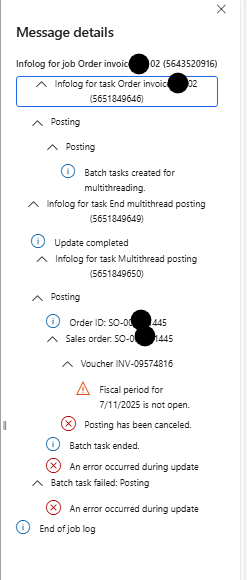
- Display them in a user-friendly format, similar to how batch job logs appear in the D365 F&O UI
This approach not only improves error transparency but also helps functional consultants and support teams quickly identify and troubleshoot failed records without digging through raw logs or the infolog.
Step-by-Step: Implementing Record-Level Error Logging in D365 F&O
Let’s now walk through the technical implementation to capture and display error logs for each record processed via batch jobs.
1. Create a New EDT:
- Define a new Extended Data Type (EDT) named DFTIntegrationStatusMessage with Memo as its base type.
- This will hold detailed error messages.
2. Update Your Log Table:
- Add a string-type field named Message using the new EDT DFTIntegrationStatusMessage.
- Add a container-type field named ErrorMessagesContainer using the EDT InfologData.
- This container will store error messages in a structured format for later retrieval.
3. Add Utility Class for Capturing Infologs:
- Create a class named DFTGetInfologMessages in your project.
- To avoid compilation errors, ensure that the TestEssentials model is referenced by navigating to: Model Management > Update Model Parameters.
/// <summary>
/// get infolog messages from container infolog
/// </summary>
/// <remarks>N developed for Batch Failure by RhushikeshR</remarks>
public final class DFTGetInfologMessages
{
    /// <summary>
    /// get new instance of <c>DFTGetInfologMessages</c>
    /// </summary>
    /// <returns>instance of <c>DFTGetInfologMessages</c></returns>
    public static DFTGetInfologMessages construct()
    {
        return new DFTGetInfologMessages();
    }

    /// <summary>
    /// get concatenated value of all messages from infolog container
    /// </summary>
    /// <param name = "_infologData">container of messages</param>
    /// <returns>info messages string</returns>
    public DFTIntegrationStatusMessage getAllMessages(InfologData _infologData)
    {
        DFTIntegrationStatusMessage mergedInfo;

        for( int i = 1; i <= conlen(_infologData); i++)
        {
            container message =   conpeek(_infologData, i);
            if (message)
            {
                if (conpeek(message, 2))//insert only if message not empty or null
                {
                    str messageSeverityStr = this.getEnumLabel(conpeek(message, 1));

                    if (mergedInfo)
                    {
                        mergedInfo = mergedInfo + ';' + '\n' + messageSeverityStr + ':- ' + conpeek(message, 2);
                    }
                    else
                    {
                        mergedInfo = messageSeverityStr + ':- ' + conpeek(message, 2);
                    }
                }
            }
        }

        return mergedInfo;
    }

    /// <summary>
    /// get enum element label
    /// </summary>
    /// <param name = "_enumValue">enum element value</param>
    /// <param name = "_enumName">enum name</param>
    /// <returns>enum element label</returns>
    private str getEnumLabel(int _enumValue, str _enumName = 'MessageCenterEntryType')
    {
        DictEnum enum = new DictEnum(enumName2Id(_enumName));
        int indexCount;
        str enumLabel;

        for (indexCount=0; indexCount < enum.values(); indexCount++)
        {
            if (enum.index2Value(indexCount) == _enumValue)
            {
                enumLabel = enum.index2Label(indexCount);
                break;
            }
        }

        return enumLabel;
    }

    /// <summary>
    /// eliminate informational messages from message container
    /// </summary>
    /// <param name = "_infologData">container of messages</param>
    /// <returns>exception messages container</returns>
    public container getExceptionMessagesContainer(InfologData _infologData)
    {
        container errorDataCon;

        for( int i = 1; i <= conlen(_infologData); i++)
        {
            container messageCon =   conpeek(_infologData, i);
            if(i == 1)
            {
                errorDataCon += [messageCon];
            }
            if (messageCon)
            {
                if (conpeek(messageCon, 2))//skip informational messages
                {
                    errorDataCon += [messageCon];
                }
            }
        }

        return errorDataCon;
    }

    /// <summary>
    /// display all messages on screen
    /// </summary>
    /// <param name = "_message">concatenated string of messages</param>
    public void displayAllMessages(DFTIntegrationStatusMessage _message)
    {
        List strlist=new List(Types::String);

        ListIterator    iterator;

        strlist=strSplit(_message,';');

        iterator = new ListIterator(strlist);

        while(iterator.more())
        {
            str messageStr = iterator.value();

            messageStr = strReplace(messageStr, '\n', '');

            container messageCon = str2con(messageStr, ':-');

            if (conPeek(messageCon, 1) == enum2Str(MessageCenterEntryType::Information))
            {
                info (conPeek(messageCon, 2));
            }
            else if (conPeek(messageCon, 1) == enum2Str(MessageCenterEntryType::Warning) || conPeek(messageCon, 1) == enum2Str(MessageCenterEntryType::ValidationFailure))
            {
                warning (conPeek(messageCon, 2));
            }
            else if (conPeek(messageCon, 1) == enum2Str(MessageCenterEntryType::Error) || conPeek(messageCon, 1) == enum2Str(MessageCenterEntryType::DuplicateKeyException))
            {
                error (conPeek(messageCon, 2));
            }
            else
            {
                info (messageStr);
            }

            iterator.next();
        }
    }

}
4. Sample Batch Job Service Class:
- Refer to the sample implementation provided below
- The batch job processes data from a custom table to create Purchase Orders and logs errors for each failed record.
- Lines marked with important remark in the code relate to capturing and storing error logs.
/// <summary>
/// create and confirm purchase order
/// </summary>
/// <remarks>N developed for Batch Failure by RhushikeshR</remarks>
public class DFTPurchOrderService extends SysOperationServiceBase
{
    RefRecId currentBatchJobId;

    public void processOperation(DFTPurchOrderDataContract _contract)
    {
            #define.RetryNum(5)

            Query                   query;
            int                     recordCounter;
            DFTPurchaseOrderHeader  purchaseOrderHeader;
            InfologData             infologData; //*** important
            int                     retryCount;
            QueryBuildDataSource    qbdsPurchOrderHeader;
            QueryBuildRange         qbrIntStatus;

            if (this.isExecutingInBatch())
            {
                currentBatchJobId = this.getCurrentBatchHeader().parmBatchHeaderId();
            }

            this.generatePurchOrderHeaderMappingTable();

            DFTGetInfologMessages getInfologMessages = DFTGetInfologMessages::construct(); // Instantiate customized infolog class; Code snippet of class is attached separately.

            contract    = _contract;

            query       = contract.getQuery();

            if (!query)
            {
                query = new Query(queryStr(DFTPurchaseOrderHeaderQuery));

                qbdsPurchOrderHeader = query.dataSourceTable(tableNum(DFTPurchaseOrderHeader));

                qbrIntStatus = qbdsPurchOrderHeader.addRange(fieldNum(DFTPurchaseOrderHeader, IntegrationStatus));

                qbrIntStatus.value(strFmt('%1', SysQuery::value(DFTIntegrationStatus::InProcessing)));
                qbrIntStatus.status(RangeStatus::Locked);
            }
            else
            {
                qbdsPurchOrderHeader = query.dataSourceTable(tableNum(DFTPurchaseOrderHeader));
            }

            qbdsPurchOrderHeader.addSortField(fieldNum(DFTPurchaseOrderHeader, PurchId), SortOrder::Ascending);
            qbdsPurchOrderHeader.addSortField(fieldNum(DFTPurchaseOrderHeader, RecId), SortOrder::Ascending);

            QueryRun queryRun = new QueryRun(query);

            while (queryRun.next()) // this query iterates all purchase orders one after another
            {
                boolean     isProcessed;
                int         infologStartIndex   = infolog.num()+1; //*** important for each new record

                purchaseOrderHeader             = queryRun.get(tableNum(DFTPurchaseOrderHeader));

                recordCounter++;

                try
                {
                    ttsbegin;
                    retryCount = xSession::currentRetryCount();
                    this.createPurchOrderHeader(purchaseOrderHeader);
                    this.confirmPurchOrder(purchaseOrderHeader.PurchId);
                    Info (strFmt("Purchase order %1 created and confirmed successfully", purchaseOrderHeader.PurchId));
                    infologData = infolog.copy(infologStartIndex, infologLine());
                    str mergedInfo = getInfologMessages.getAllMessages(infologData);

                    retryCount = retryCount == 0 ? 1 : retryCount;

                    this.updatePurchaseOrderLogFields(purchaseOrderHeader, retryCount, mergedInfo, DFTIntegrationStatus::Processed, infologData);
                    ttscommit;

                    isProcessed =true;
                }
                catch (Exception::Deadlock)
                {
                    if (appl.ttsLevel() == 0)
                    {
                        if (xSession::currentRetryCount() >= #RetryNum)
                        {
                            error(strFmt("There is still a deadlock after retrying %1 times for purchase order %2. Try again later.", #RetryNum, purchaseOrderHeader.PurchId));

                        }
                        else
                        {
                            retry;
                        }
                    }
                    else
                    {
                        error(strFmt("There is a deadlock for purchase order %1. Try again later.", purchaseOrderHeader.PurchId));
                        retryCount = retryCount == 0 ? 1 : retryCount;
                    }
                }
                catch (Exception::CLRError)
                {
                    System.Exception ex = ClrInterop::getLastException();
                    if (ex != null)
                    {
                        ex = ex.get_InnerException();
                        if (ex != null)
                        {
                            error(ex.ToString());
                        }
                    }

                    warning(strFmt("An exception occurred for purchase order %1.", purchaseOrderHeader.PurchId));
                    retryCount = retryCount == 0 ? 1 : retryCount;
                }
                catch
                {
                    warning(strFmt("An exception occurred for purchase order %1.", purchaseOrderHeader.PurchId));
                    retryCount = retryCount == 0 ? 1 : retryCount;

                }
                finally
                {
                    infologData = infolog.copy(infologStartIndex, infologLine()); //*** important
                    DFTIntegrationStatusMessage mergedInfo = getInfologMessages.getAllMessages(infologData); // get all messages in string format //*** important

                    if (isProcessed)
                    {
                        this.updatePurchaseOrderLogFields(purchaseOrderHeader, retryCount, mergedInfo, DFTIntegrationStatus::Processed, infologData);
                    }
                    else
                    {
                        this.updatePurchaseOrderLogFields(purchaseOrderHeader, retryCount, mergedInfo, DFTIntegrationStatus::Error, infologData);
                    }
                }
            }

            info (strFmt("Batch job ended. Number of processed records: %1", recordCounter));
    }


    private void updatePurchaseOrderLogFields(DFTPurchaseOrderHeader _purchaseOrderHeader, int _retryCount, DFTIntegrationStatusMessage _mergedInfo,DFTIntegrationStatus _integrationStatus, InfologData _infologData)
    {
        ttsbegin;
        _purchaseOrderHeader.selectForUpdate(true);

        _purchaseOrderHeader.RetryCountReference = _purchaseOrderHeader.RetryCountReference + _retryCount;
        _purchaseOrderHeader.RetryCount = _purchaseOrderHeader.RetryCountReference;

        if (_purchaseOrderHeader.RetryCount > 0)
        {
            _purchaseOrderHeader.RetryDateTime = DateTimeUtil::utcNow();
        }

        _purchaseOrderHeader.IntegrationStatus = _integrationStatus;
        _purchaseOrderHeader.Message = _mergedInfo; //*** important
        _purchaseOrderHeader.ErrorMessagesContainer = _infologData; //*** important
        _purchaseOrderHeader.BatchJobId = currentBatchJobId;
        _purchaseOrderHeader.StatusChangeDateTime = DateTimeUtil::utcNow();
        _purchaseOrderHeader.update();
        ttscommit;
    }

}
5. Displaying Errors in the UI:
- Add logic on your form to allow users to view error logs per record.
- You can leverage both:
- DFTGetInfologMessages class (to extract structured messages)
- ErrorMessagesContainer field (to store and retrieve messages)
6. Enhance the Form with a Log Viewer:
- Add a new button on your form named “Show log”.
- Implement the required logic in the clicked() method to fetch and display error details using the DFTGetInfologMessages class.
public void clicked()
{
    super();

    DFTGetInfologMessages getInfologMessages = DFTGetInfologMessages::construct();
    container errorCon = getInfologMessages.getExceptionMessagesContainer(DFTPurchaseOrderHeader.ErrorMessagesContainer);

    if (conLen(errorCon) > 1)
    {
        setprefix(strfmt("Infolog for purchase order %1", DFTPurchaseOrderHeader.PurchId));
        infolog.import(errorCon);
        infolog.import([[1], [0, 'End of log.']]);
    }
    else
    {
        Message::Add(MessageSeverity::Informational, "No error log for selected record.");
    }
}
The DFTGetInfologMessages class is a versatile utility that can be reused across various customizations—anywhere detailed error logging is required, from integrations to validations.
Code files:
📬 Stay tuned!
In the next blog post, we’ll demonstrate how to extend this class to send automated email alerts for batch job failures—making your monitoring smarter and more proactive.

 D365 Fit Bytes